Samsung Galaxy S7 (Native)
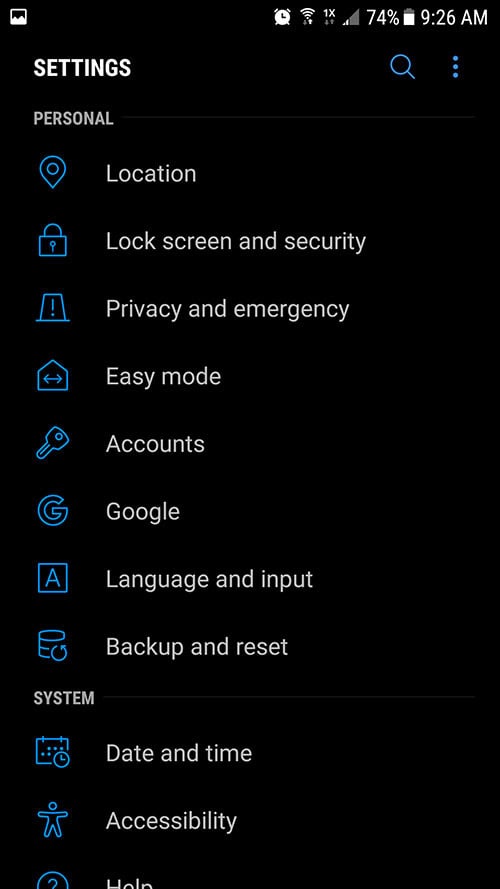
1. Launch the Settings app on your device.
2. Once it launches, scroll to Personal and tap Accounts.
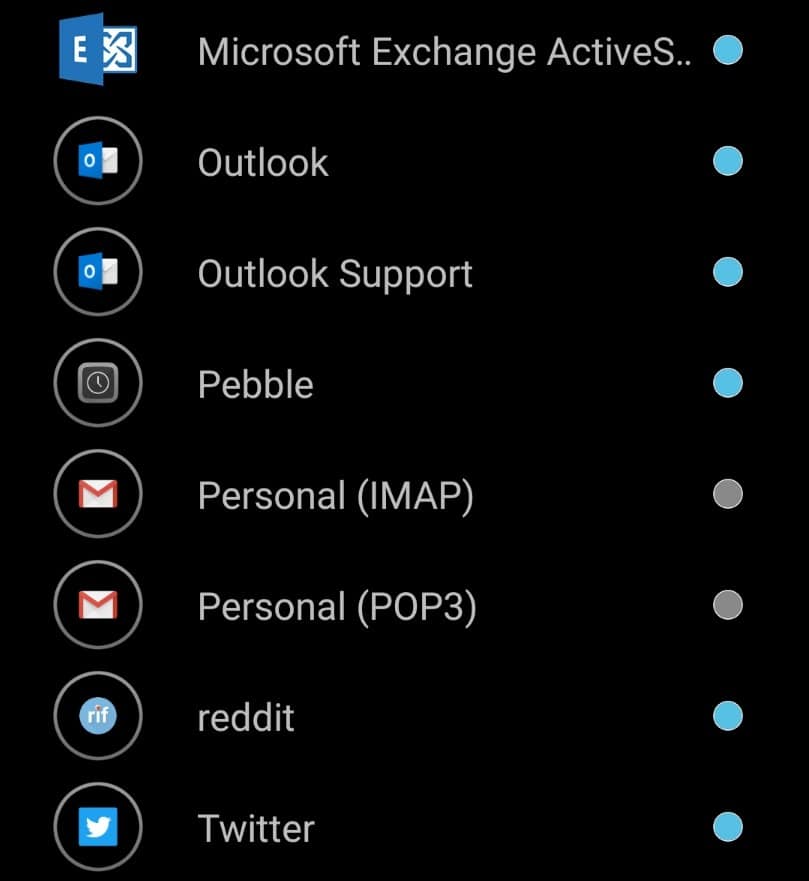
3. Tap Add Account
4. Select Personal (IMAP), near the bottom of the screen, as the Account Type
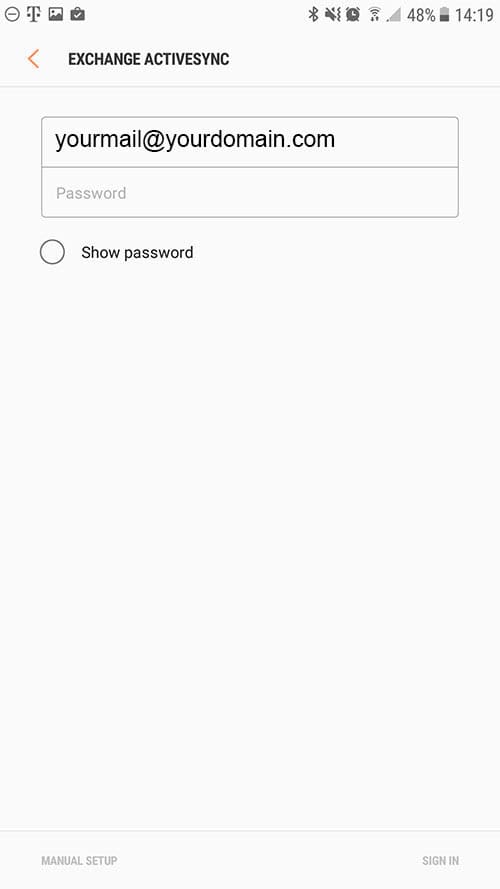
5. Email address: yourmail@yourdomain.com
Password: Your mailbox password
6. Tap Manual Setup
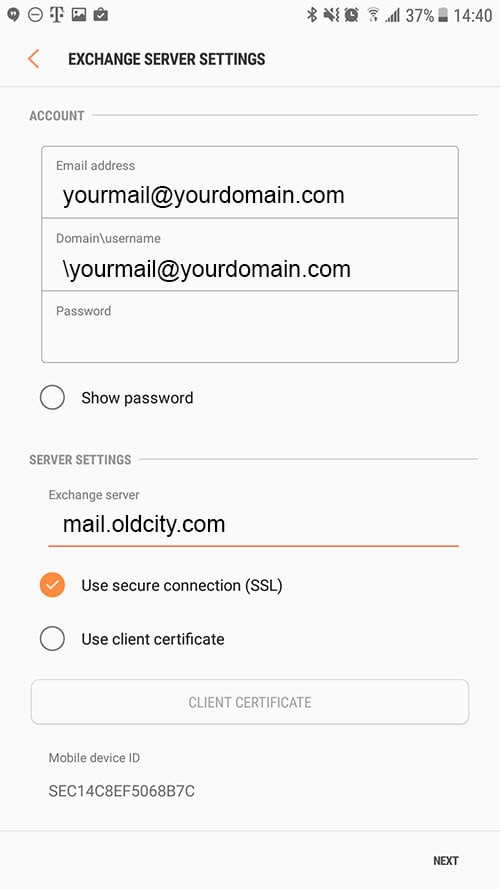
7. Enter the following server details:
Email address: yourmail@yourdomain.com
Domain\Username: \yourmail@yourdomain.com
Password: Your mailbox password
Exchange Server: mail.oldcity.com
Use secure connection (SSL): Checked
Use client certificate: Unchecked
8. Tap Next
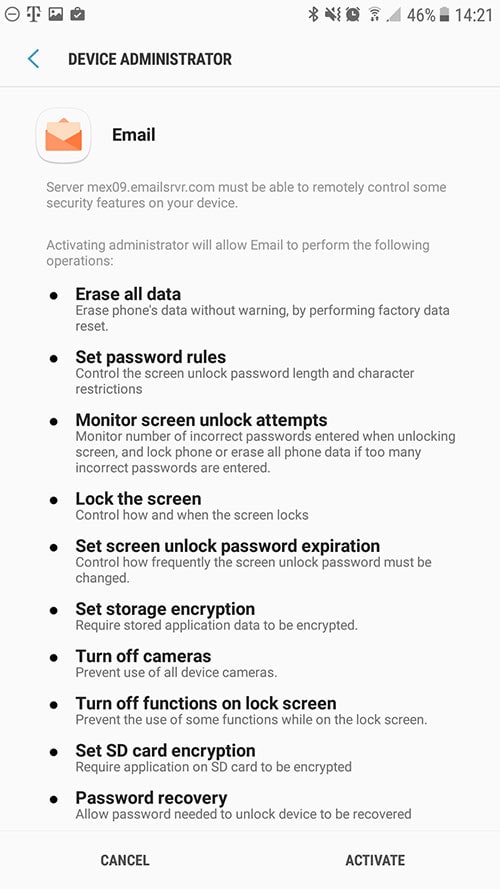
9. You will be prompted to Activate device administator, tap on Activate at the bottom of the screen
10. Modify the settings as desired.
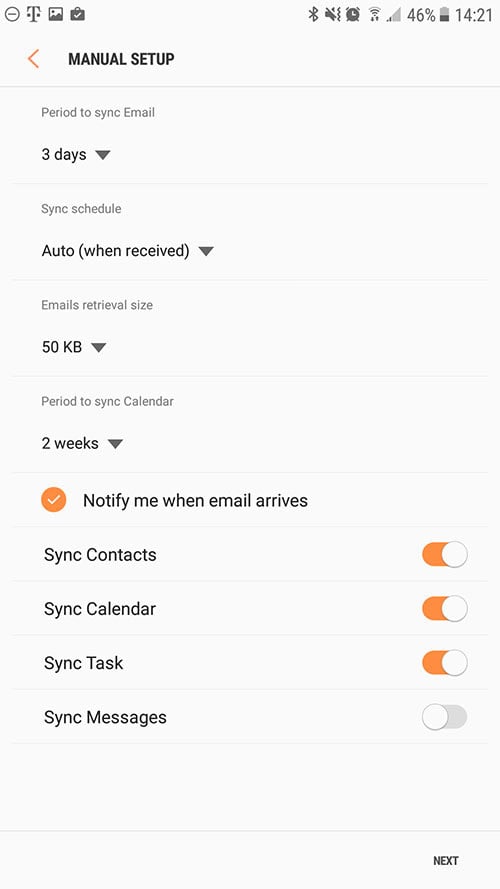
11. Tap Next
12. Account Name: Name shown on outgoing emails
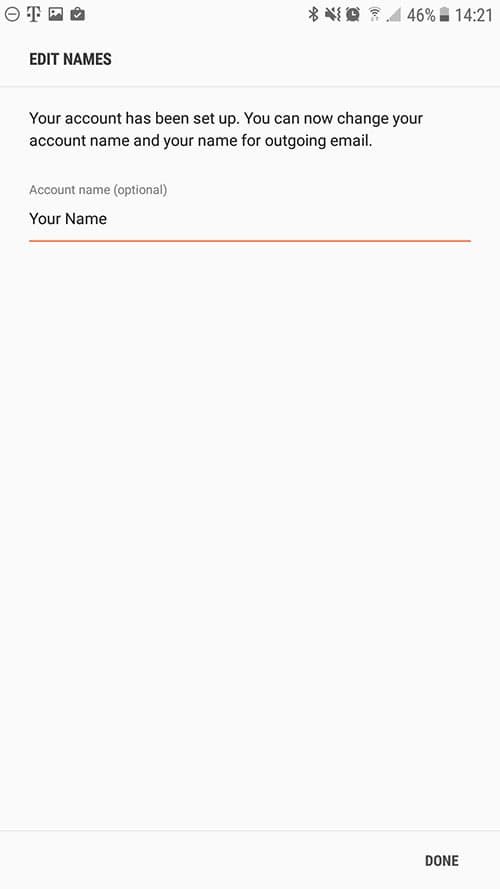
13. You are all set! Go back to the main menu, open the Email app and your messages should start syncing. Please give it a few minutes to download data before troubleshooting.
Don't forget about your other devices! Click here to set up a computer, tablet, or phone.