Samsung Galaxy Note 5 (Gmail)
1. Launch the Settings app on your device.
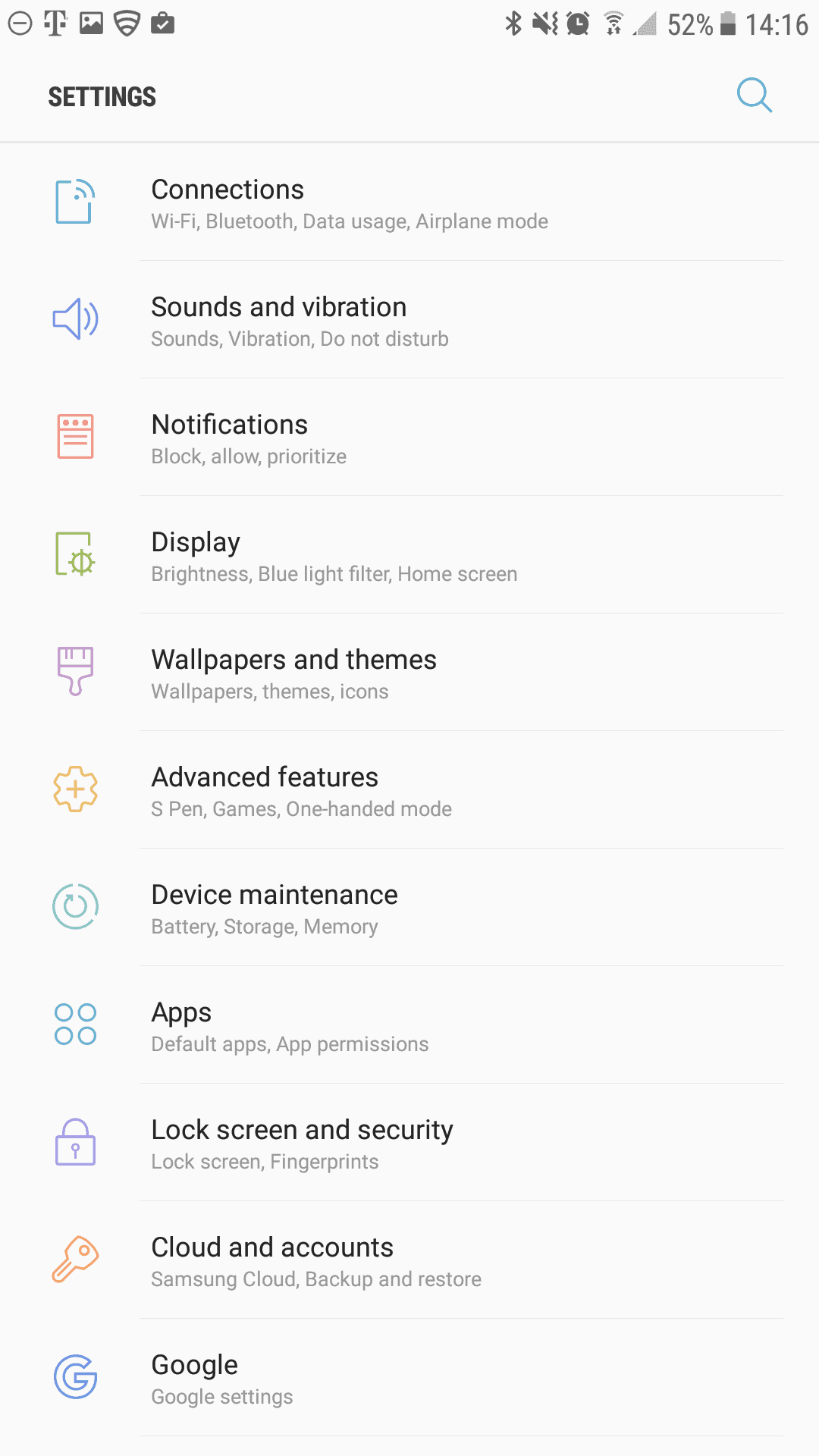
2. Once it launches, tap on Cloud and Accounts.
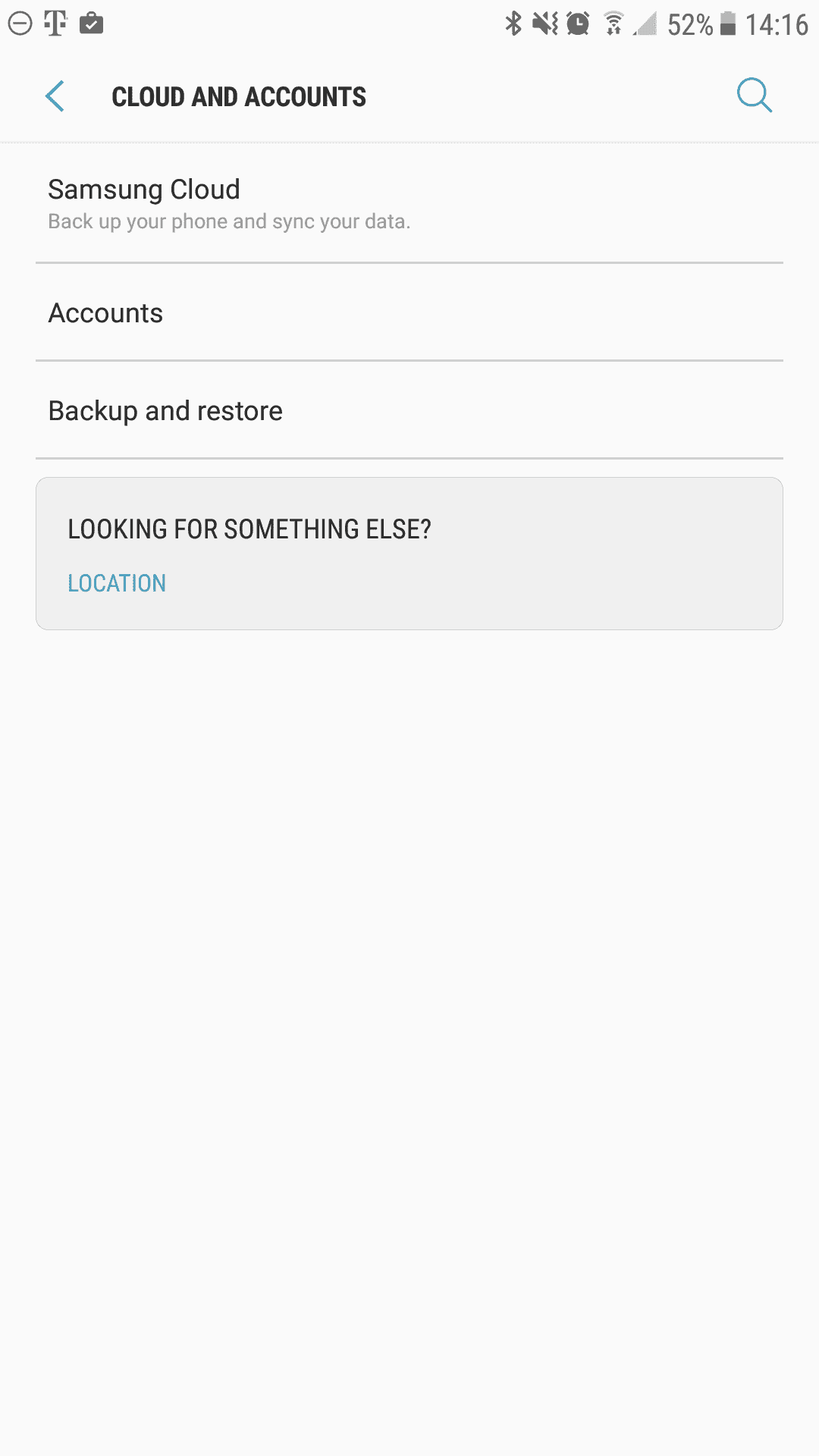
3. On the next screen, tap Accounts.
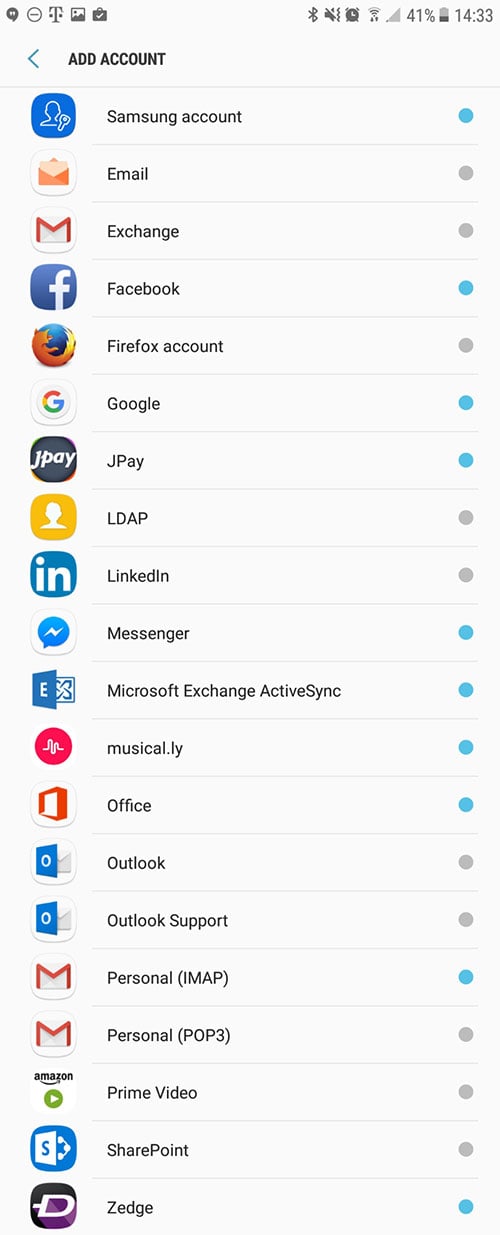
4. Tap Add Account
5. Select Exchange as the Account Type
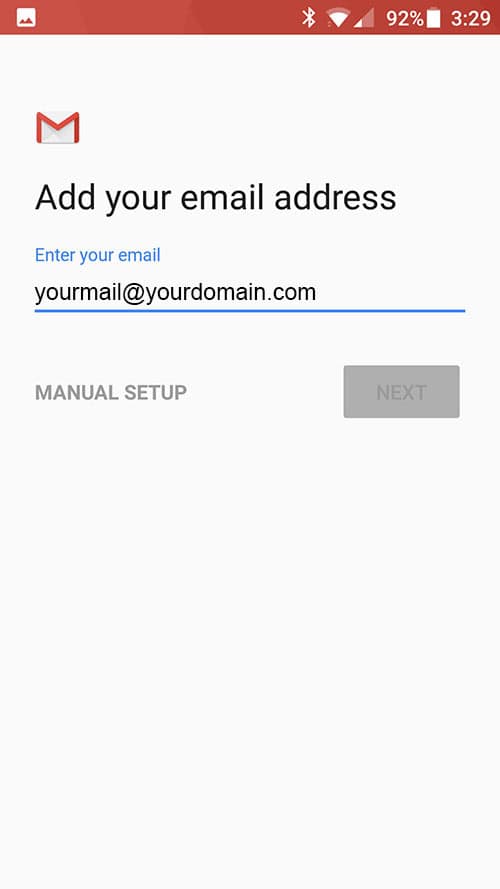
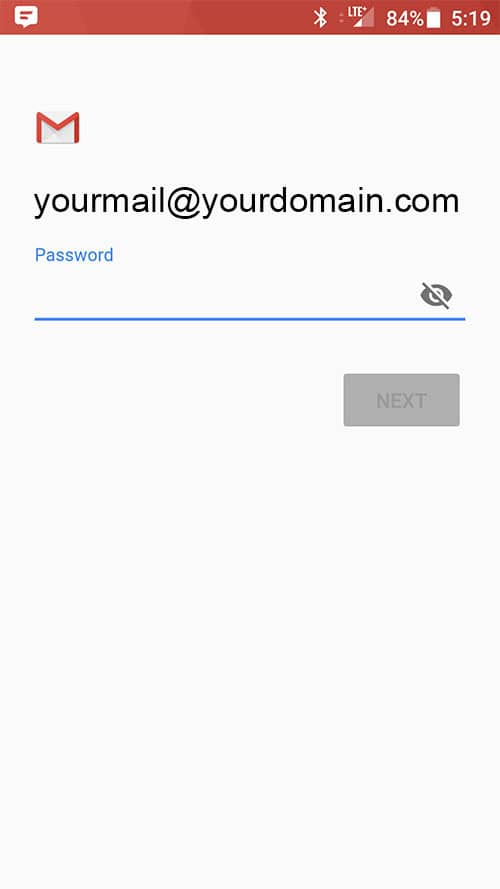
6. Enter your email address: yourmail@yourdomain.com
7. Type your mailbox password
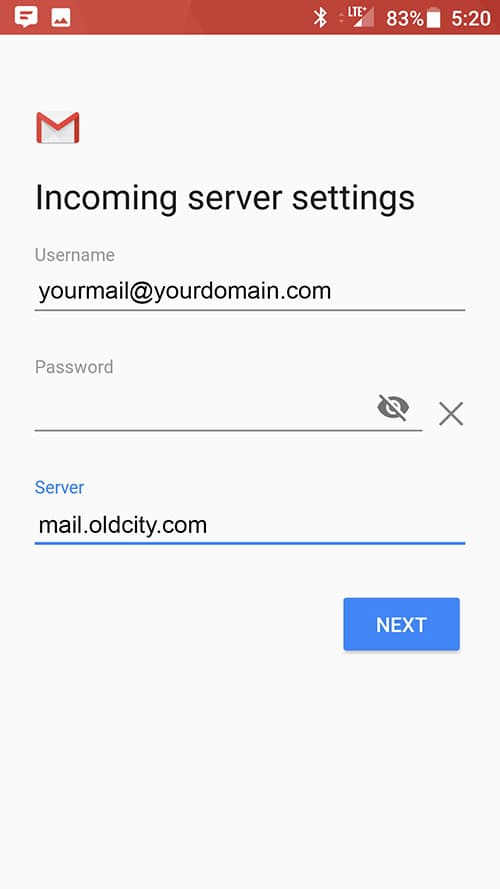
8. Enter the following incoming settings:
Username: yourmail@yourdomain.com
Password: Your mailbox password
Server: mail.oldcity.com
9. Tap Next
Authentication Failed? Read Tips
- Make sure your user name is typed as shown above and that you did not make a typo (it happens!)
- Try accessing webmail via a web browser
If your browser has a saved password, remove it and manually enter it, to make sure you're using the same password you tried on your mobile device
- If you cannot access webmail, you will need to reach out to your email admin for a possible password reset.
- If you can access webmail, triple check you're typing the same password you used for webmail
- If issues persist, contact your email admin
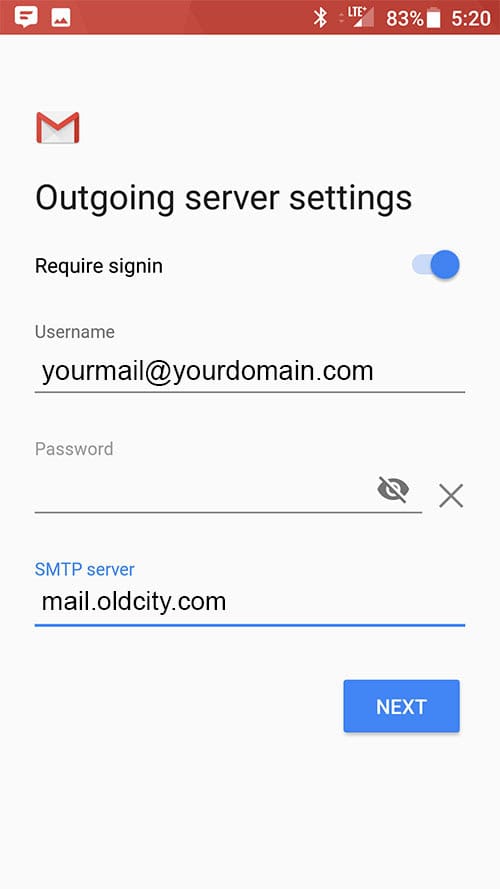
10. Enter the following outgoing settings:
Make sure Require signin is enabled.
Username: yourmail@yourdomain.com
Password: Your mailbox password
SMTP Server: mail.oldcity.com
11. Tap Next
Authentication Failed? Read Tips
- Make sure your user name is typed as shown above and that you did not make a typo (it happens!)
- Try accessing webmail via a web browser
If your browser has a saved password, remove it and manually enter it, to make sure you're using the same password you tried on your mobile device
- If you cannot access webmail, you will need to reach out to your email admin for a possible password reset.
- If you can access webmail, triple check you're typing the same password you used for webmail
- If issues persist, contact your email admin
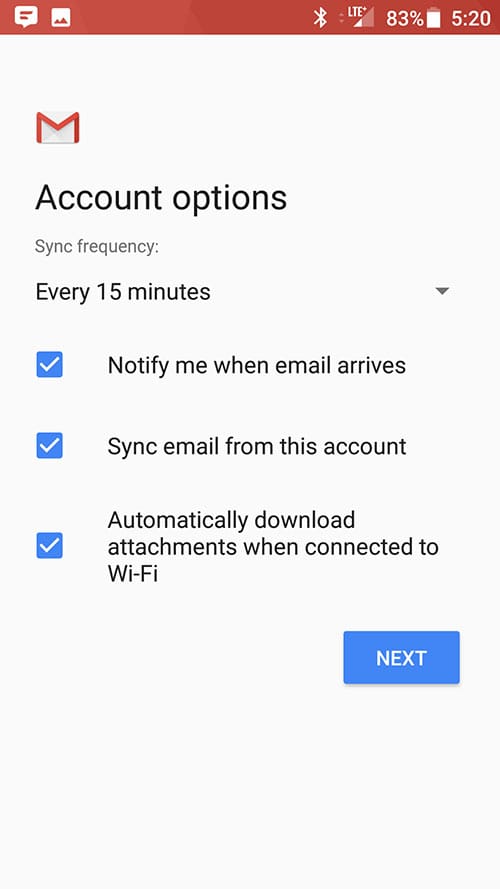
12. Select the options desired, and tap Next
13. Account Name: Used to distinguish account from others in the device
Your name: Name to be displayed in outgoing messages
14. Tap Next
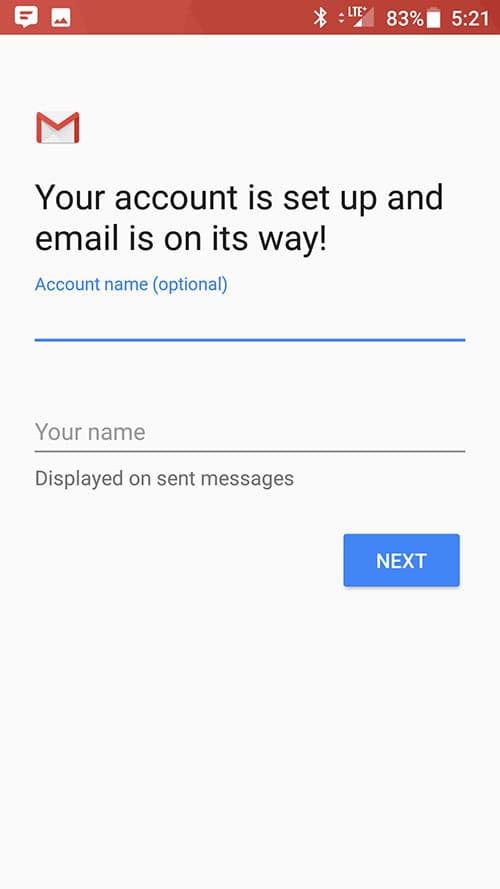
15. You are all set! Go back to the main menu, open the Gmail app and your messages should start syncing. Please give it a few minutes to download data before troubleshooting.
Don't forget about your other devices! Click here to set up a computer, tablet, or phone.