OnePlus (Outlook)
1. Download the Outlook for Android app from the Play Store here
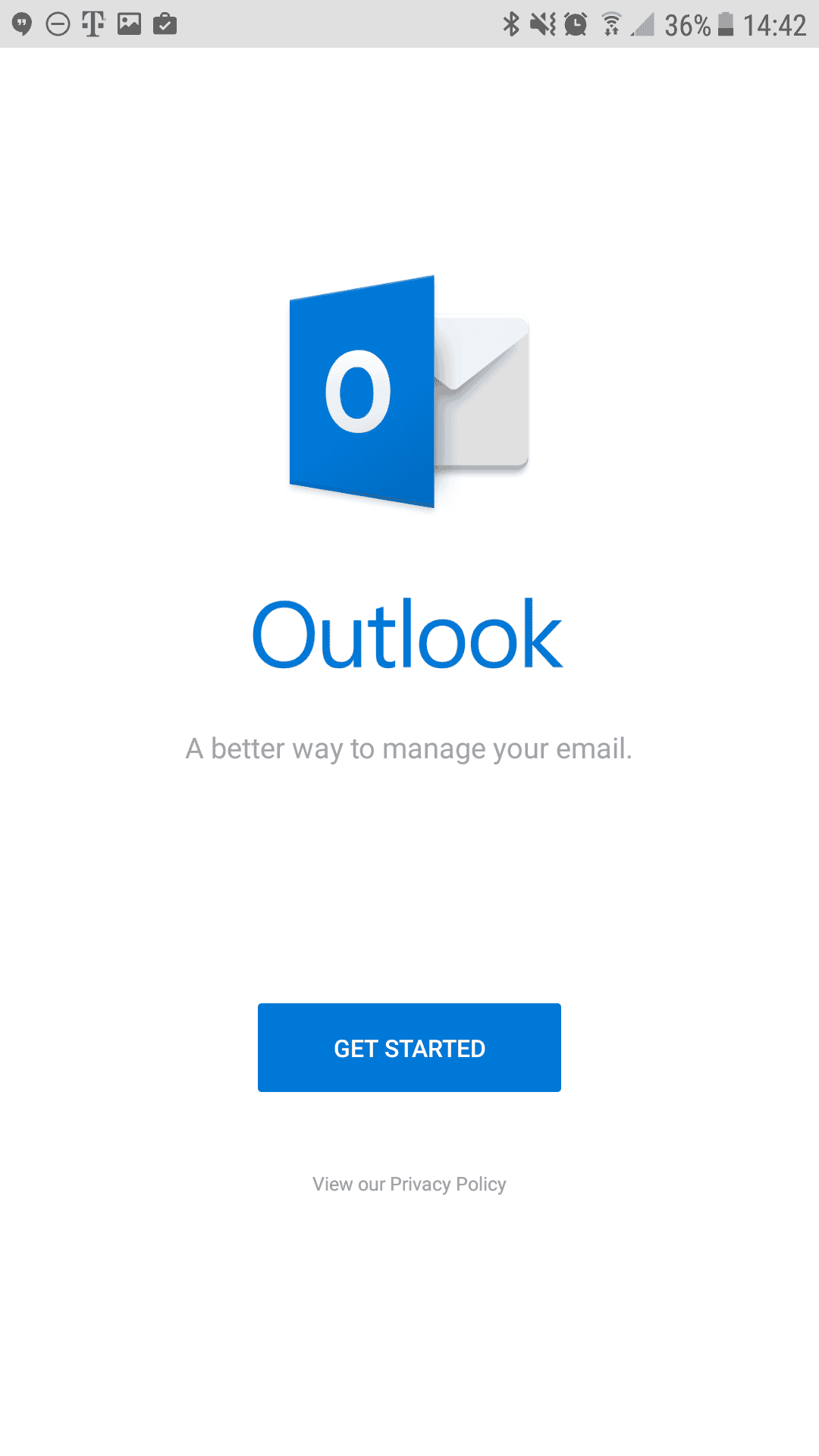
2. Once it downloads, open it, and tap the blue Get Started button
3. Enter your email address: yourmail@yourdomain.com
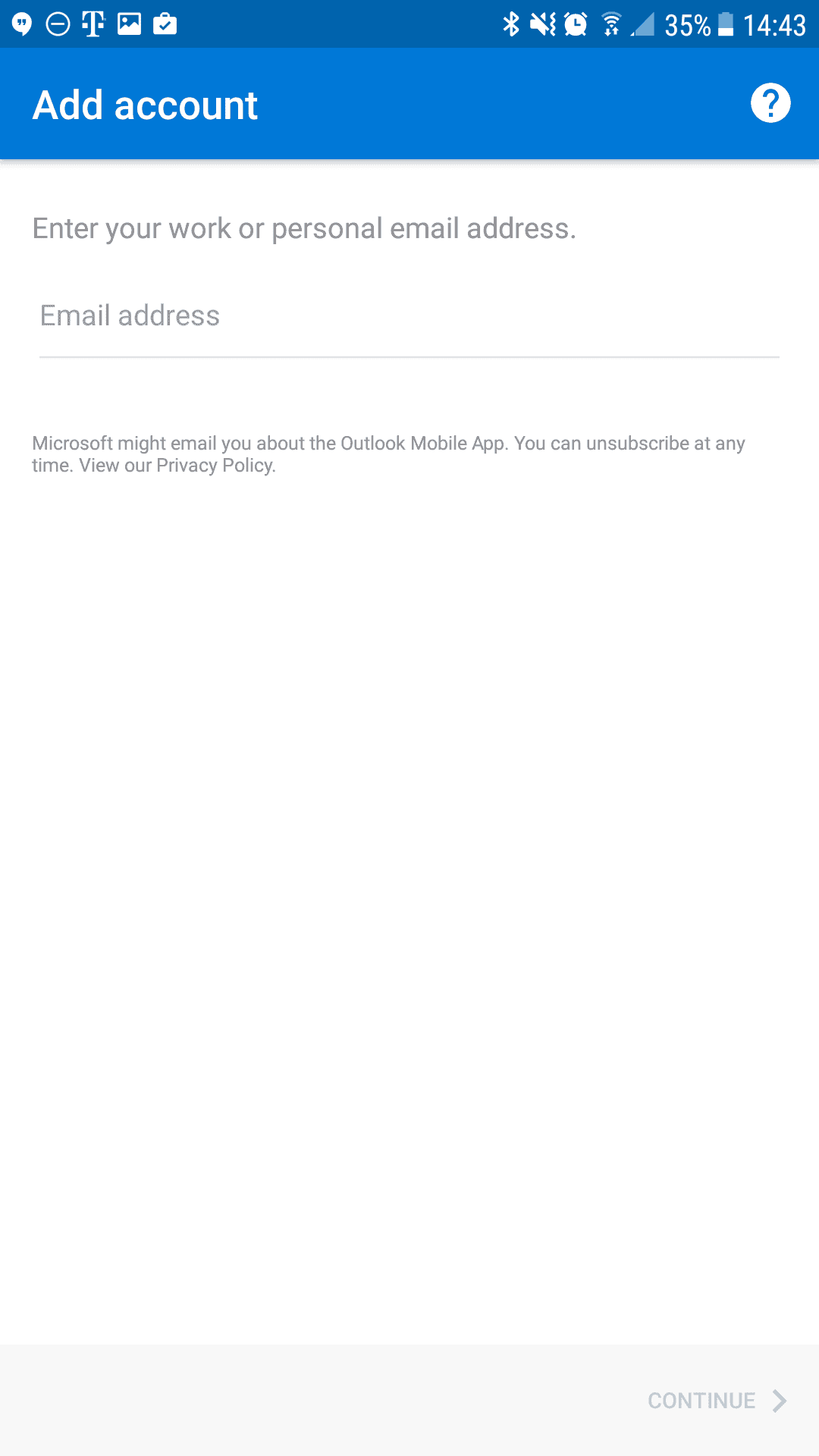
4. Tap Continue
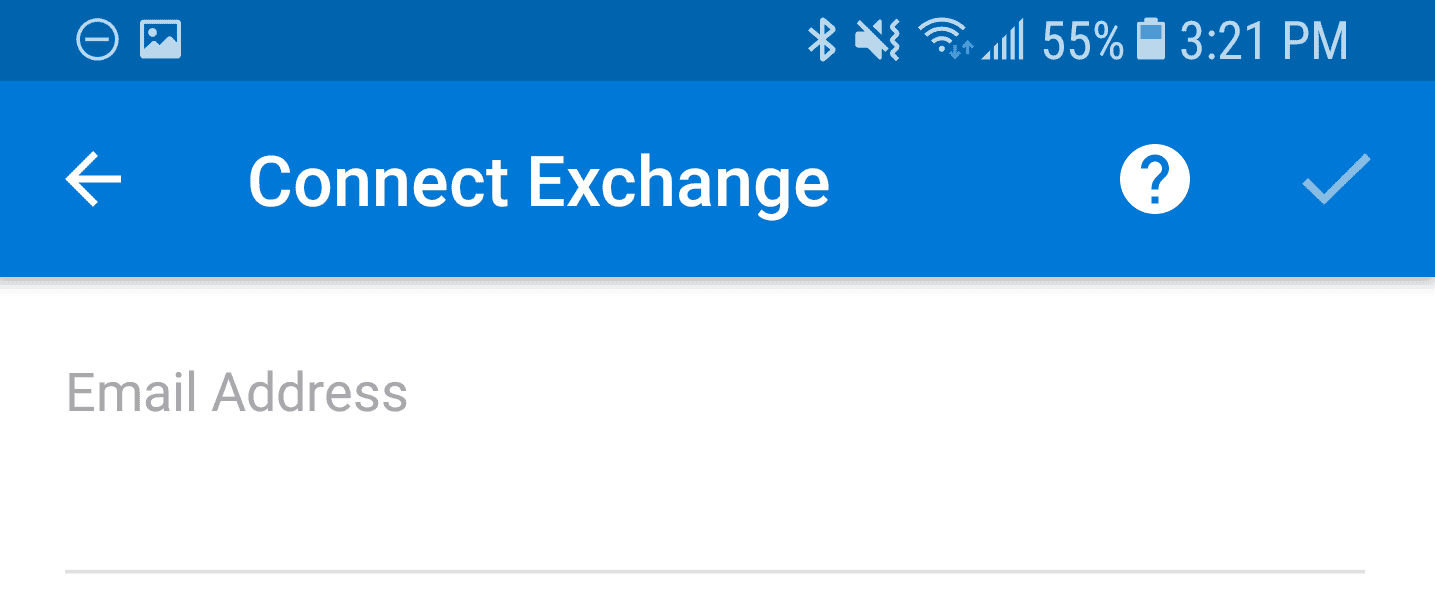
5. Now, the app by default will choose Exchange. Tap on the white Question Mark icon on the top left
6. Then tap Change account provider
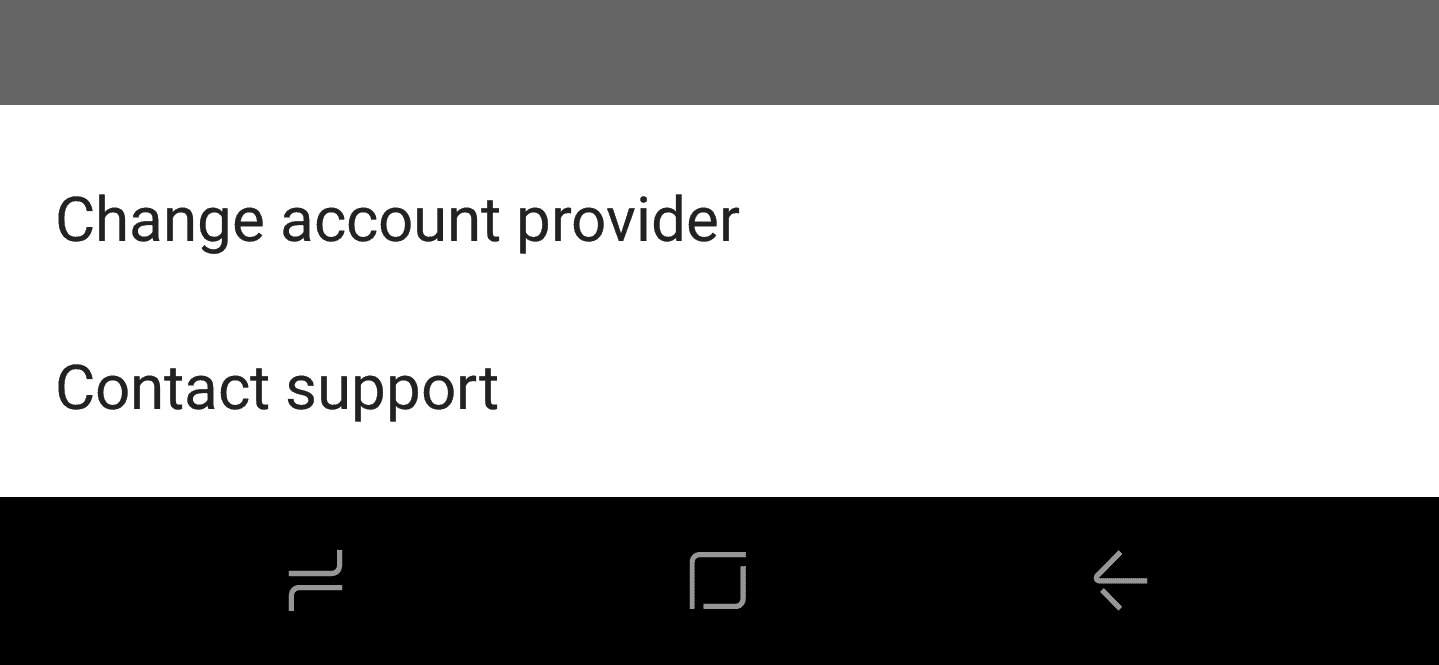
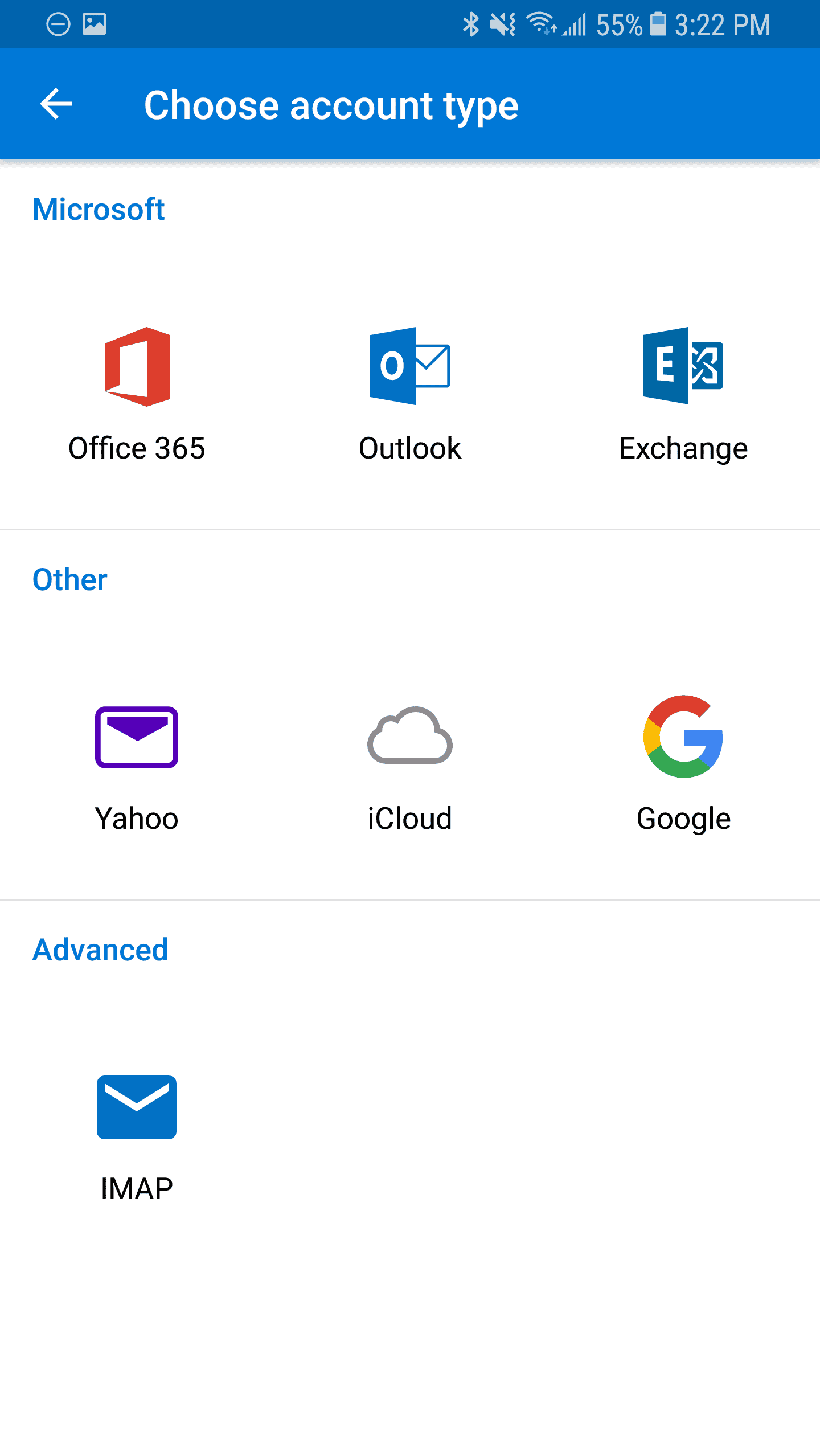
7. Select IMAP, at the bottom
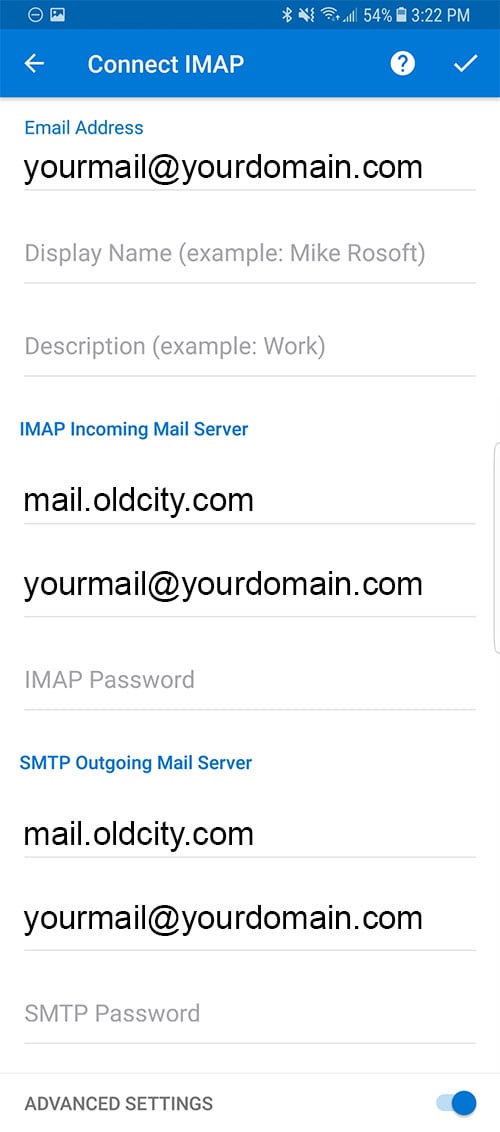
8. Enable the Advanced Settings slider
9. Enter the following settings on the screen, as shown below:
Email: yourmail@yourdomain.com
Display Name: Your name
Description: something to help you distinguish the account
IMAP Incoming Server: mail.oldcity.com
Username: yourmail@yourdomain.com
Password: Your mailbox password
SMTP Outgoing Server: mail.oldcity.com
Username: yourmail@yourdomain.com
Password: Your mailbox password
Once you're done, click the checkbox on the top right corner
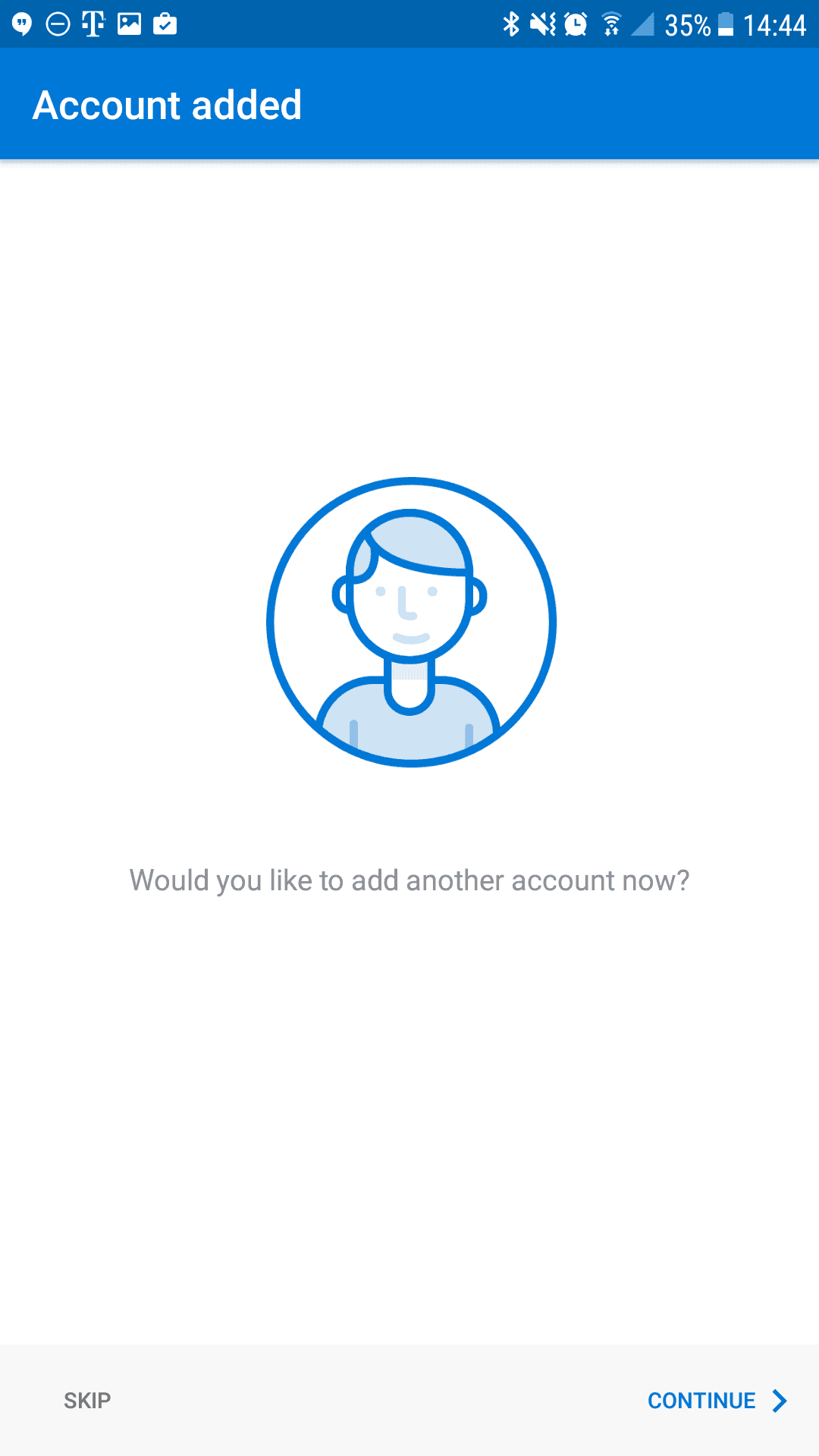
10. Tap Skip to skip adding another account
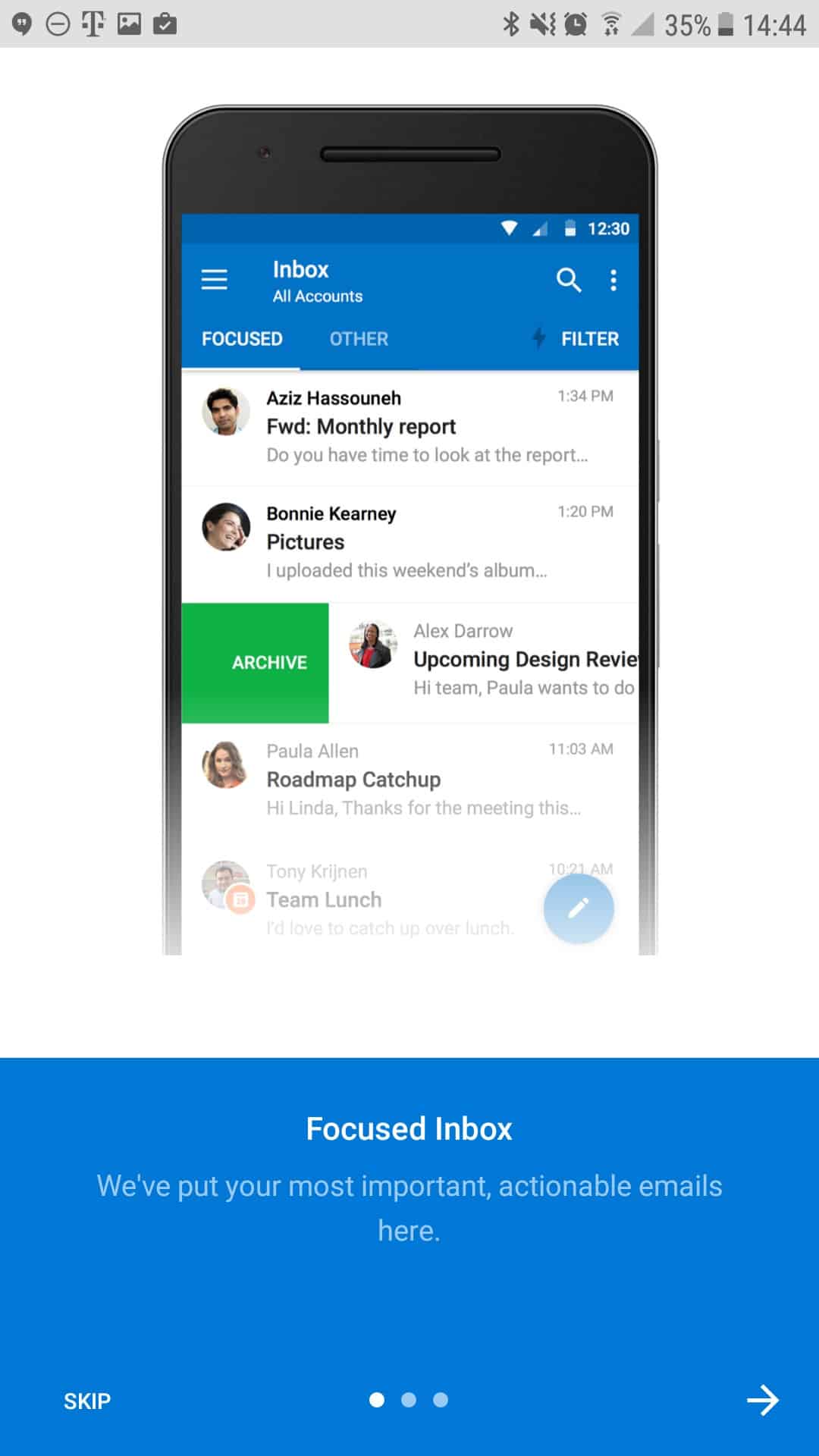
11. You may go through the app tutorial by clicking on the arrow on the bottom right, or tap Skip to skip it
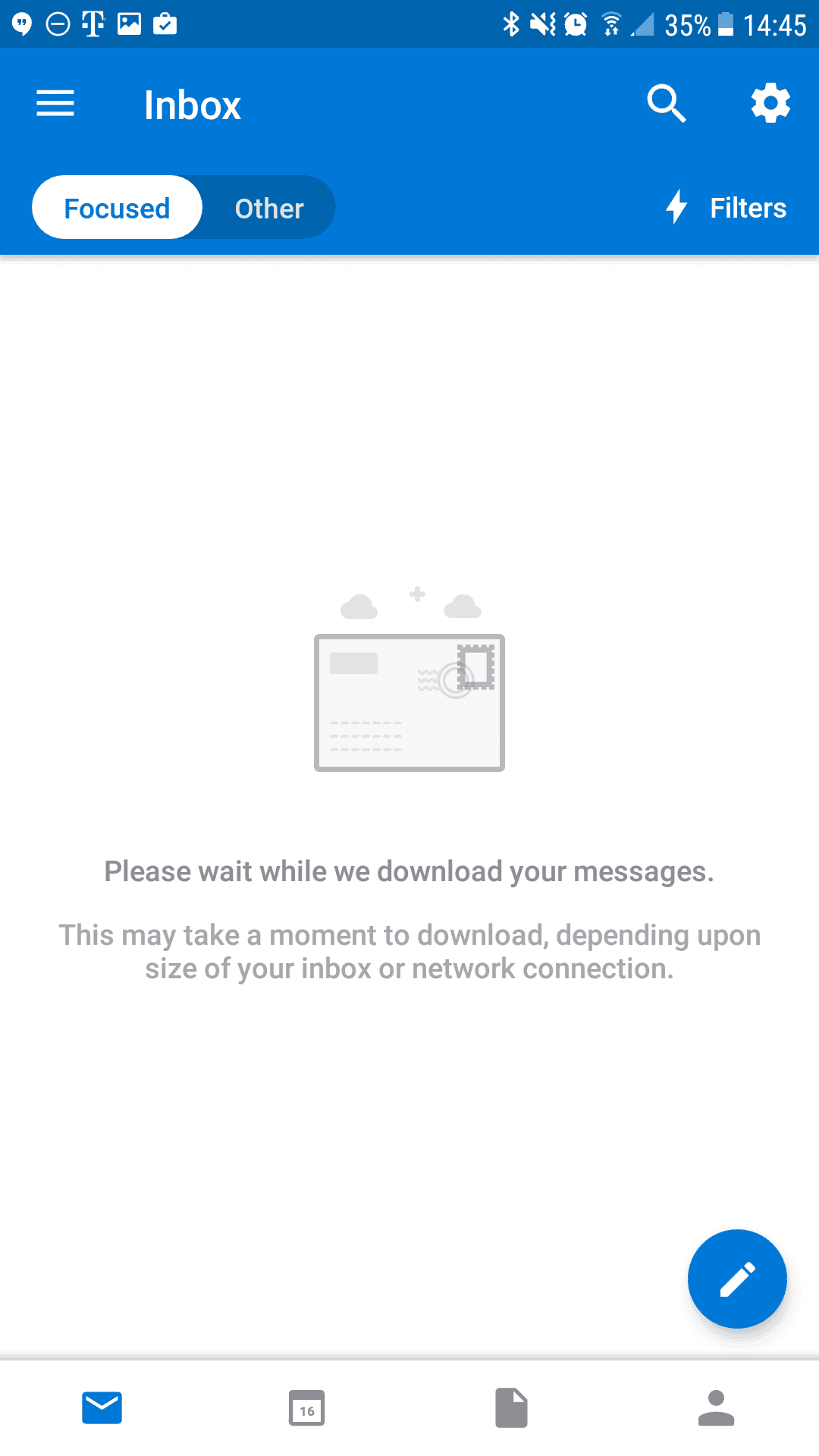
12. Once you see the mailbox screen, you are all set! It may take a few minutes to download mail depending on a variety of factors.
Don't forget about your other devices! Click here to set up a computer, tablet, or phone.