mac OS: Thunderbird (IMAP)
This article will assist you with setting up the native Mail app in Windows 10 with your Hosted Mailbox.
1. Click on the Start Menu (or press the Windows key) and then search for Mail
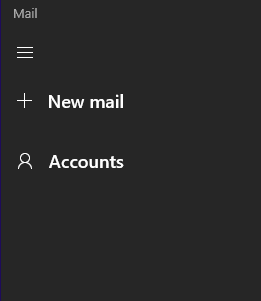
2. When Mail opens, click on Accounts in the top left.
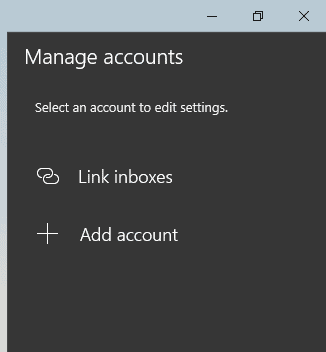
3. Select Add account in the top right to add a mailbox.
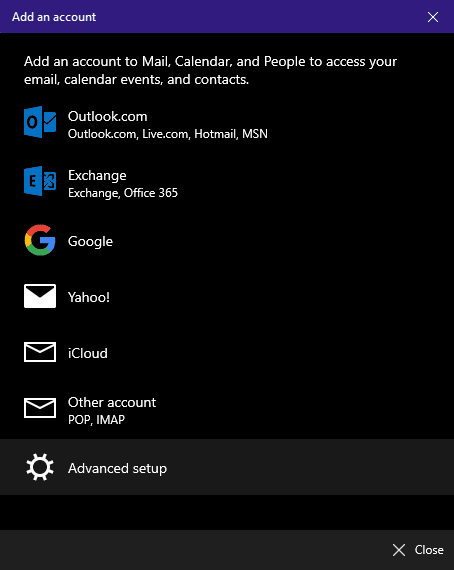
4. Select Advanced Setup and then Internet Email.
5. In the Internet email account window, input the following information before hitting Sign in:
Account Name: Whatever label you would like
User Name: yourmail@yourdomain.com
Password: Your mailbox password
Account Type: IMAP4
Incoming email server: mail.oldcity.com
Outgoing(SMTP) email server: mail.oldcity.com
Send your messages using this name: Your Name
6. Congratulations! You have now set up Mail to work with your Mailbox. Please wait 15 minutes before troubleshooting to allow for mail to download.
Don't forget about your other devices! Click here to set up a computer, tablet, or phone.