LG (Native)
1. From the apps menu, tap the Settings app.
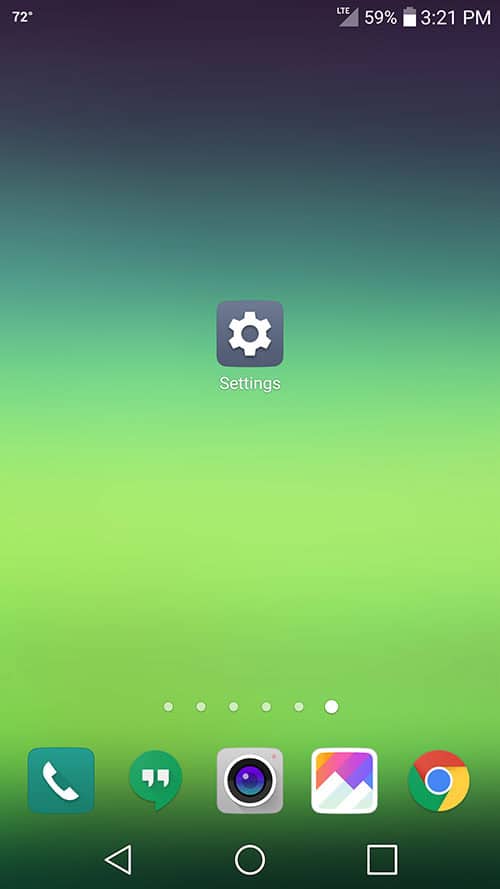
2. On the top navigation bar, tap General
3. Tap on Accounts & Sync
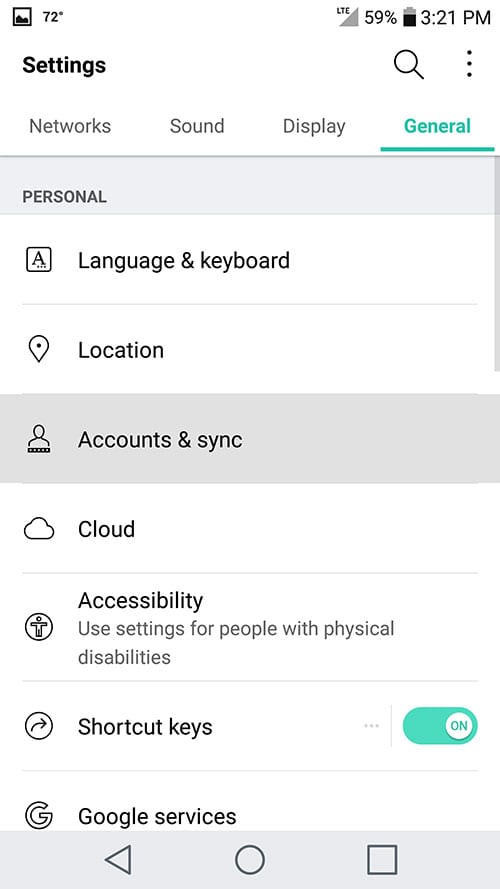
4. Tap Add Account near the bottom
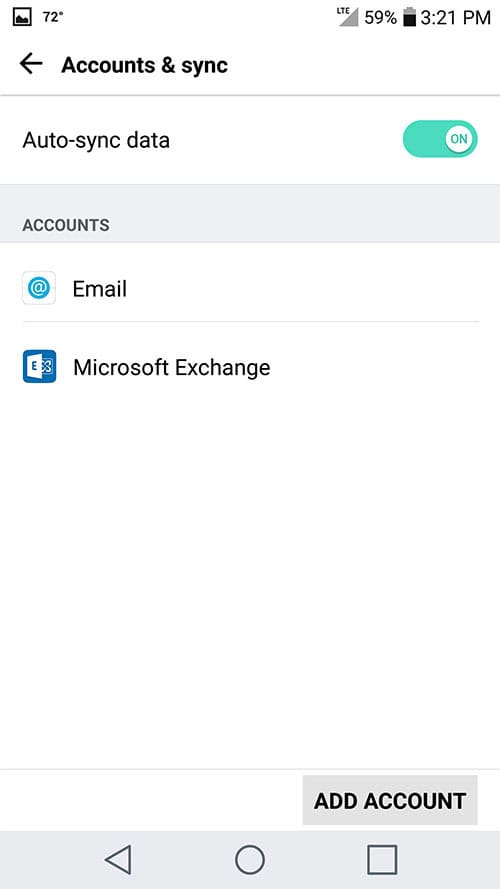
5. Tap Email
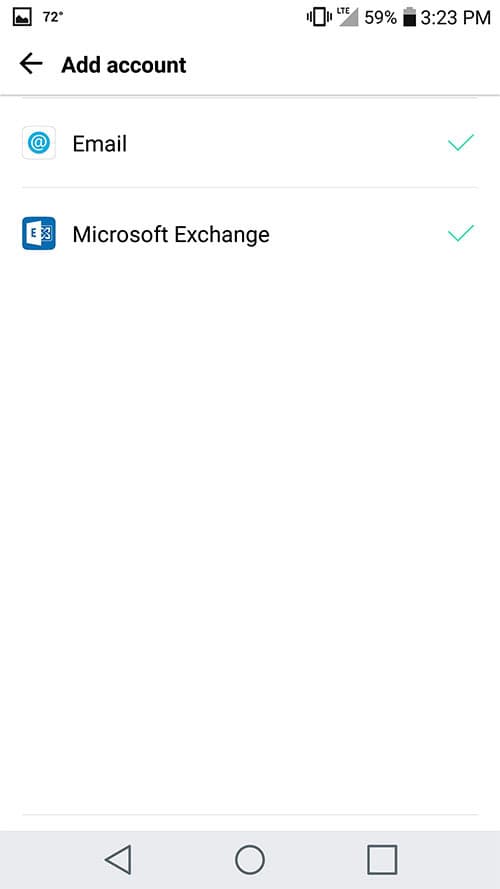
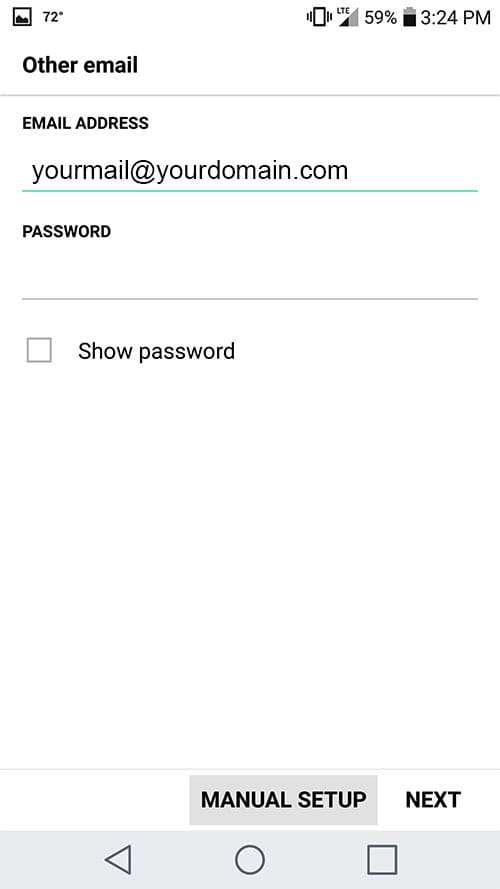
6. Enter the following details:
Email Address: yourmail@yourdomain.com
Password: Your password
7. Tap Manual Setup
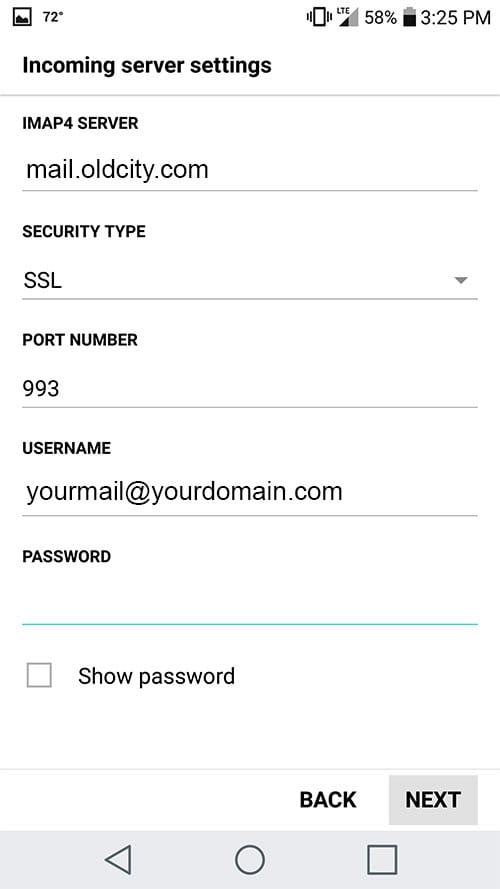
8. Enter the following details:
IMAP Server: mail.oldcity.com
Security Type: SSL
Port Number: 993
Email Address: yourmail@yourdomain.com
Password: Your password
9. Tap Next
Authentication Failed? Read Tips
- Make sure your user name is typed as shown above and that you did not make a typo (it happens!)
- Try accessing webmail via a web browser
If your browser has a saved password, remove it and manually enter it, to make sure you're using the same password you tried on your mobile device
- If you cannot access webmail, you will need to reach out to your email admin for a possible password reset.
- If you can access webmail, triple check you're typing the same password you used for webmail
- If issues persist, contact your email admin
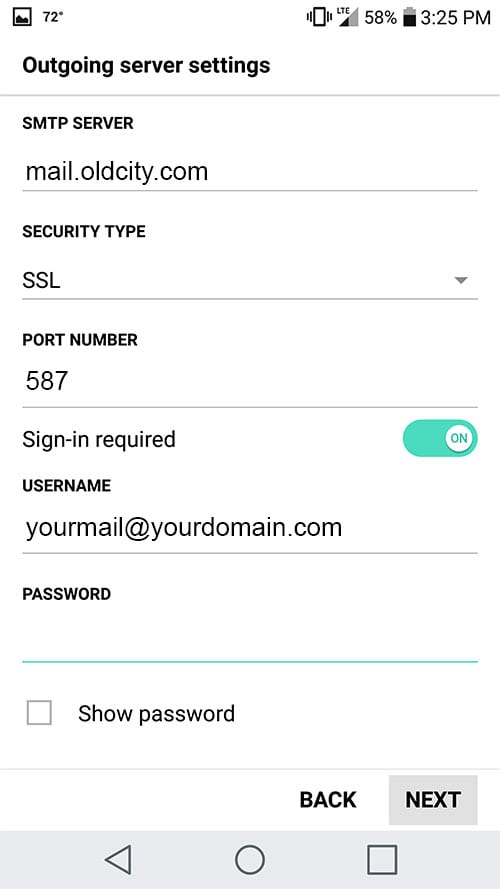
10. Enter the following details:
SMTP Server: mail.oldcity.com
Security Type: SSL
Port Number: 587
Sign in required: Enabled
Email Address: yourmail@yourdomain.com
Password: Your password
11. Tap Next
12. Give the account a name, enter your name, and tap Done
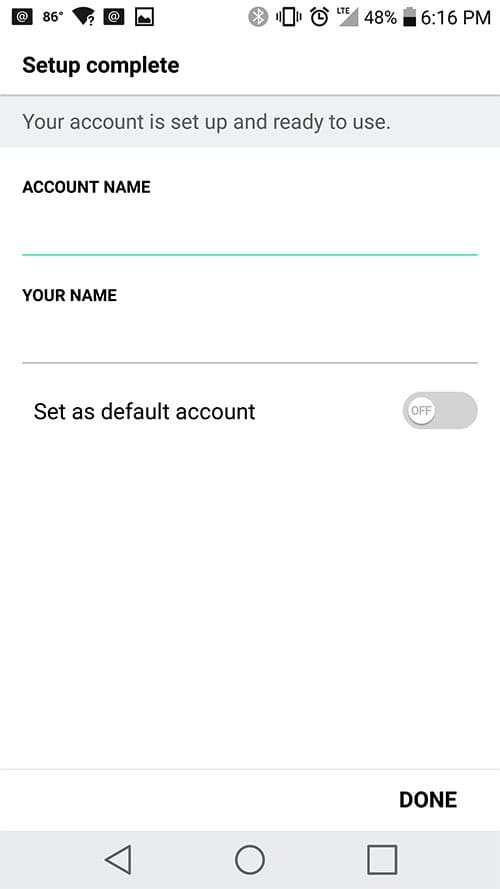
13. You are all set! Go back to the main menu, open the Email app and your messages should start syncing. Please give it a few minutes to download data before troubleshooting.
Don't forget about your other devices! Click here to set up a computer, tablet, or phone.