Amazon Fire (Existing)
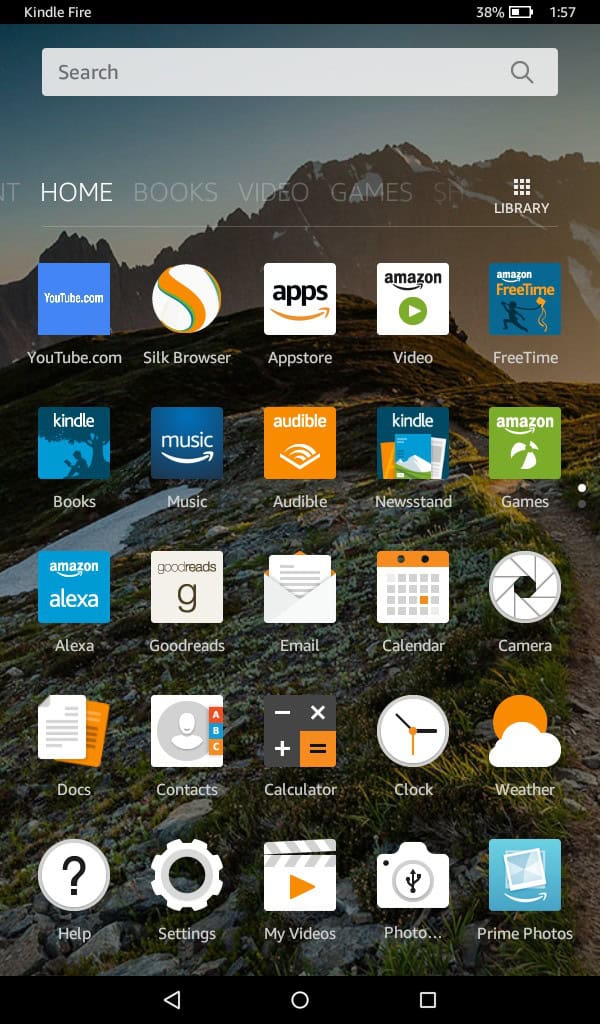
1. From the Home menu, open the Email app
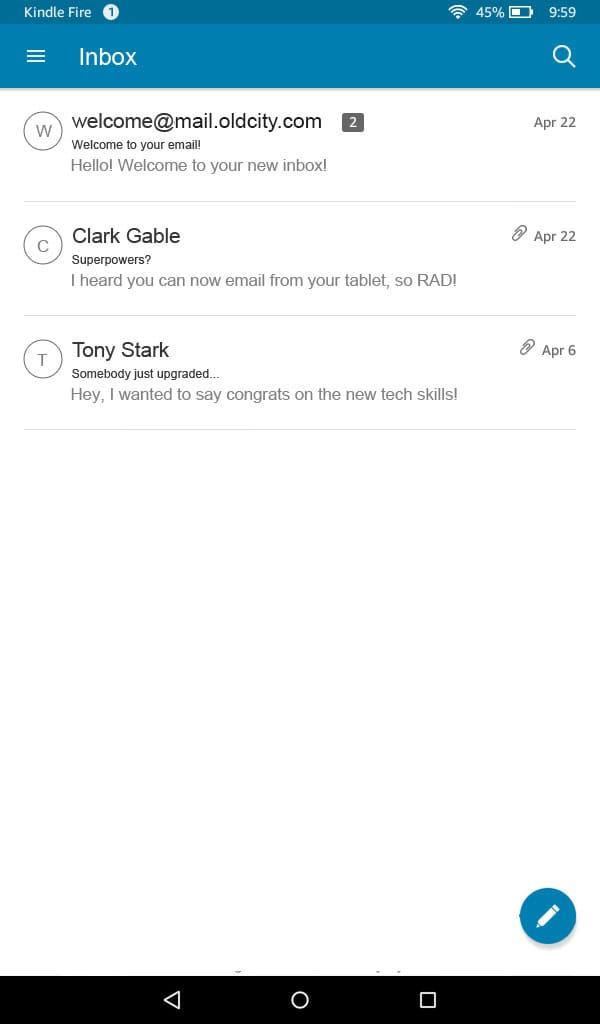
2. Tap the menu icon on the top left, next to Inbox.
3. Tap Settings
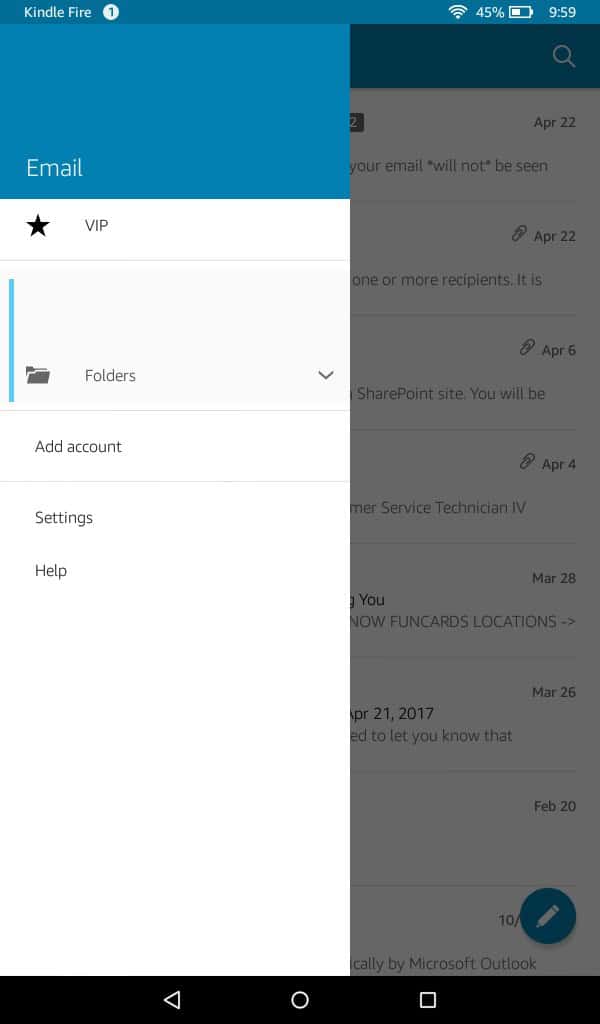
4. Tap Add Account
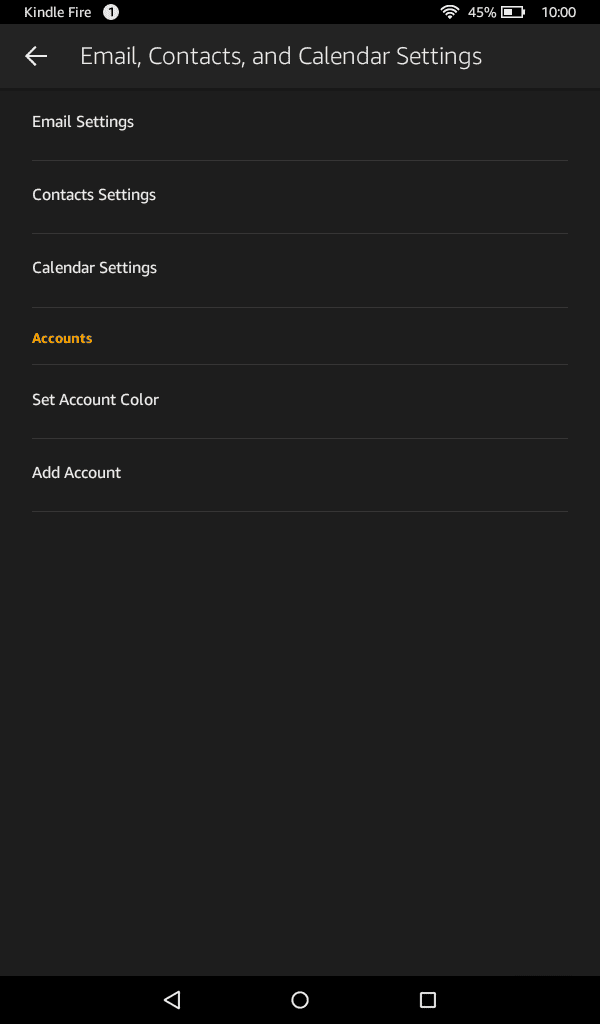
5. Enter your email address: yourmail@yourdomain.com
6. Tap Manual Setup
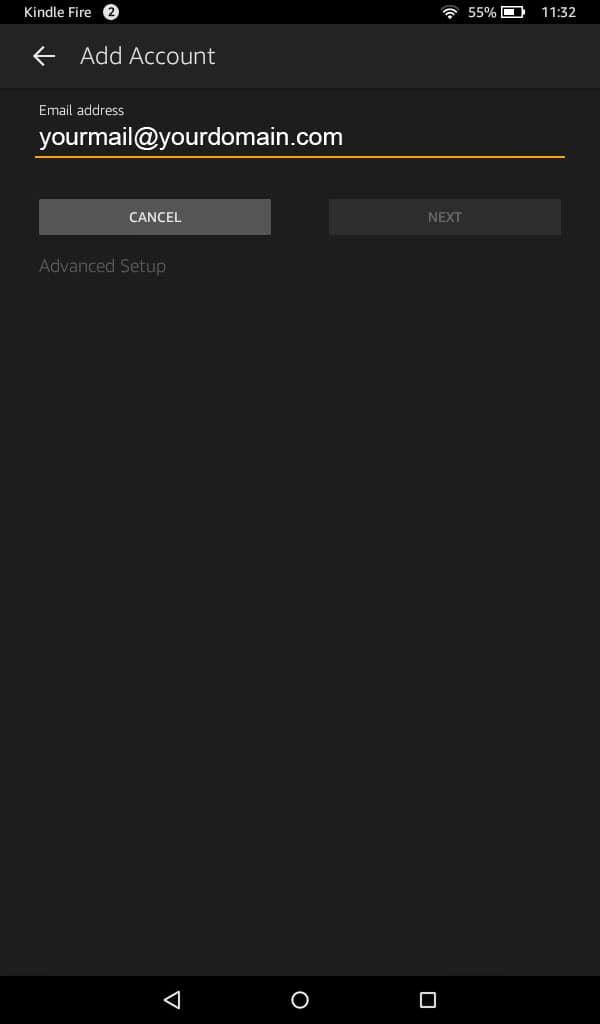
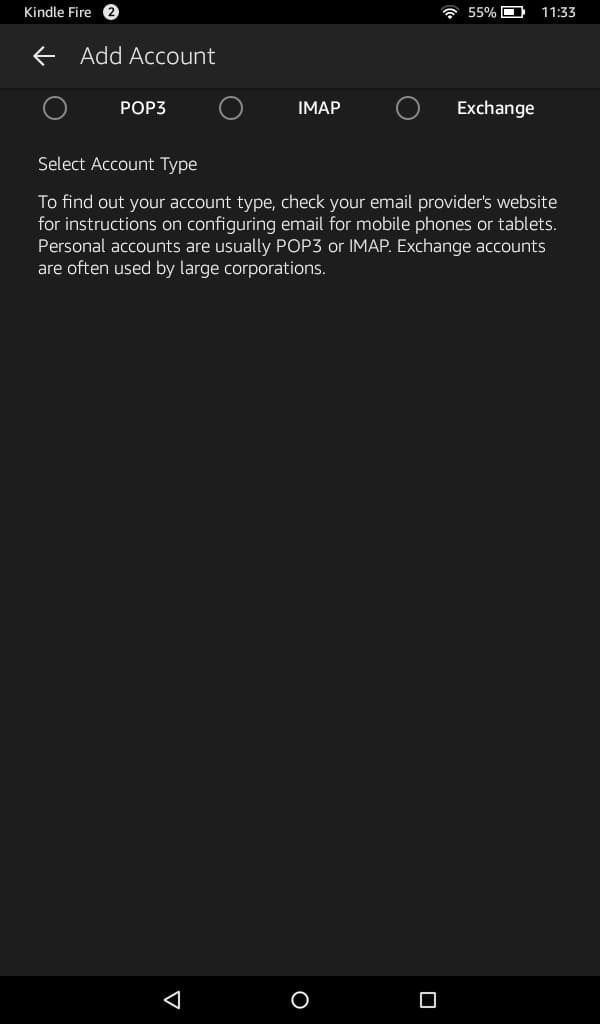
7. Select IMAP
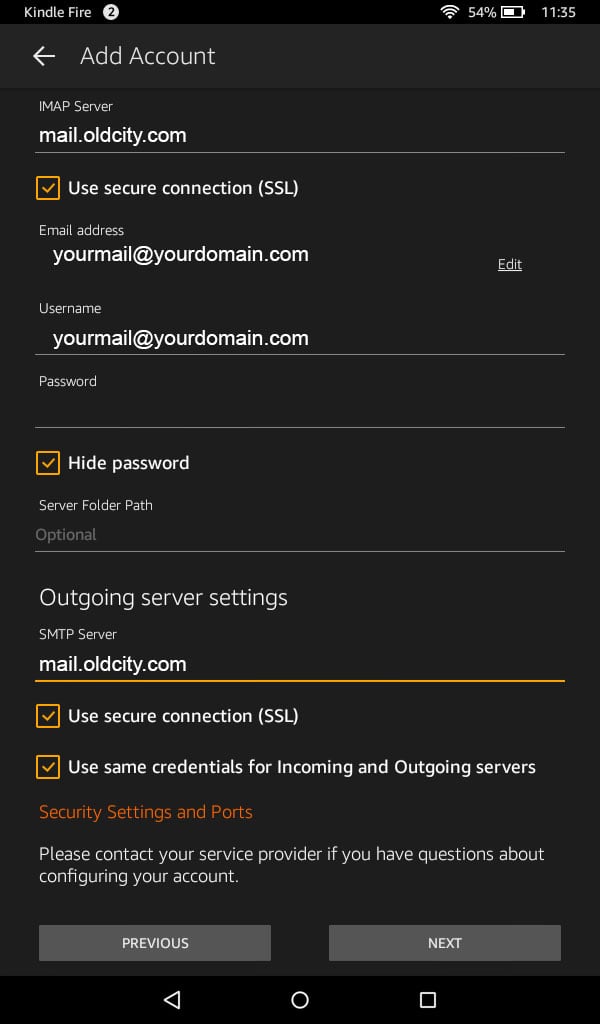
8. Enter the following information
IMAP server: mail.oldcity.com
Use secure connection SSL: checked
Username: yourmail@yourdomain.com
Password: Your password
SMTP Server: mail.oldcity.com
Use secure connection SSL: checked
Use same credentials for Incoming and Outgoing servers: checked
9. Tap Server Settings and Ports
10. Enter the following information
Incoming Security Settings
Use secure connection SSL: checked
Port: 993
Outgoing Security Settings
Use secure connection SSL: checked
Port: 587
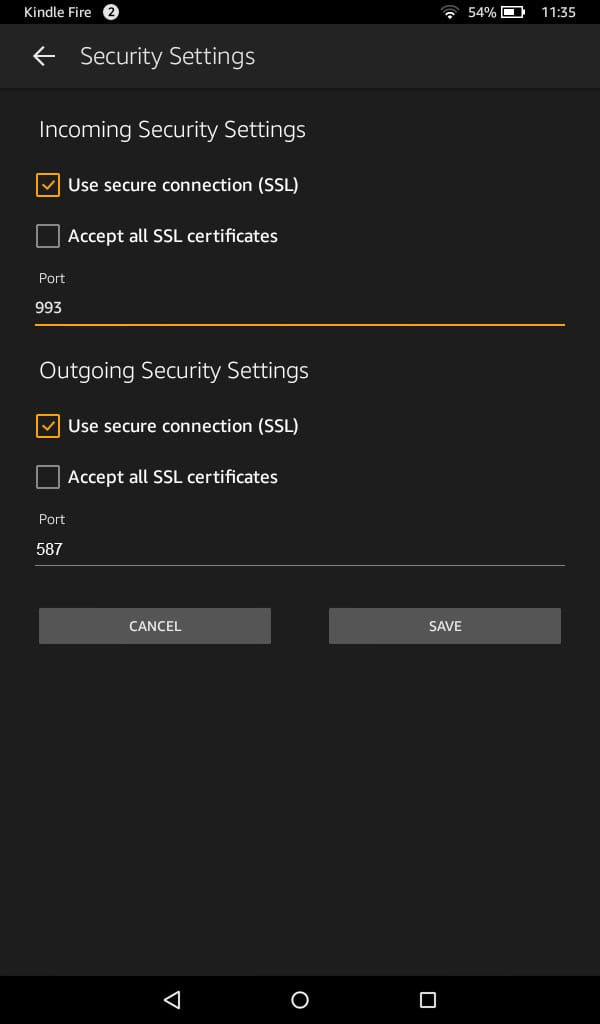
11. Tap Save
12. Tap Next
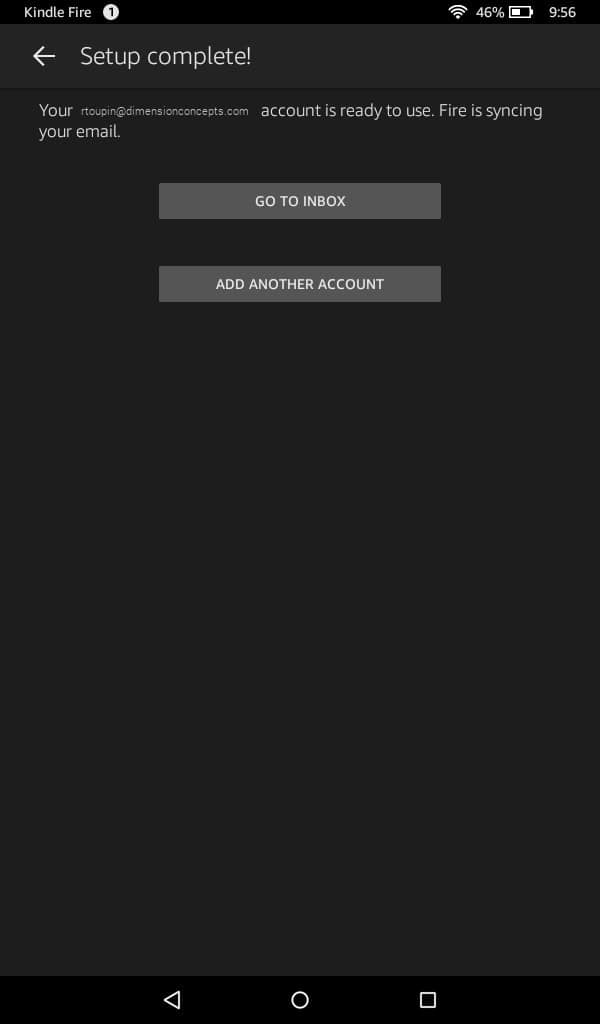
13. You're all set! Tap Go to Inbox to be taken to the inbox. It may take a few minutes for the email to populate, depending on the amount of data.